Frustrated when your Canvas grades won’t sync to Focus? You’re not alone. This common issue affects many Broward County educators, but the fix is usually straightforward. It’s almost always a grading category mismatch.
Quick Fix: Most sync errors occur because Assignment Groups in Canvas don't match Assignment Categories in Focus. Both must have identical names.
Quick Troubleshooting Checklist
- Have you created Assignment Groups in Canvas?
- Do those groups exist in Focus with identical names?
- Are assignments assigned to the correct group?
- Did you save your changes in both systems?
How do I Sync My Grades To Focus?
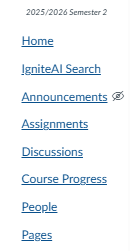
In order to sync your grades, you will need to Click on the Canvas “Course Progress” link on the menu.
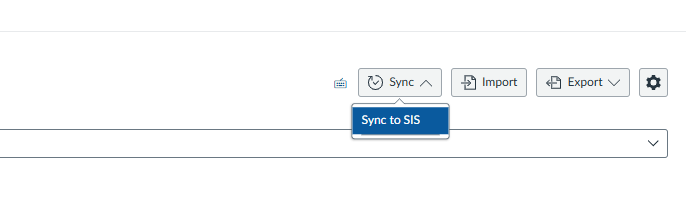
In the “Course Progress” screen, you will need to click on the “Sync” button on the top right hand corner of the screen. Select “Sync to SIS”.
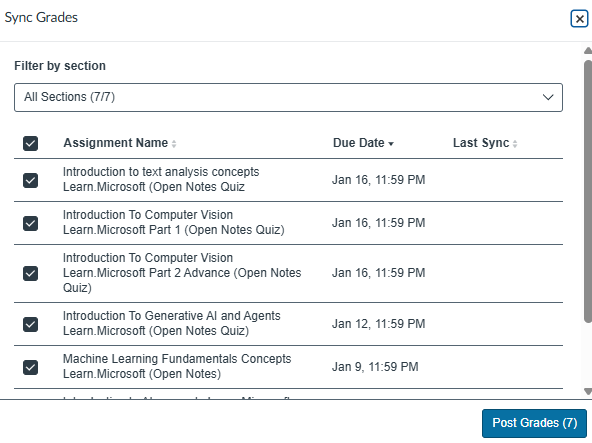
A dialog window will be displayed showing you the assignments to be synced. Select all or select only specific ones as shown below. Click the “Post Grades” button.
How Do I See If My Grades Got Synced?
In order to see if your grades were synced, you can click on the “Click To See Progress” link.
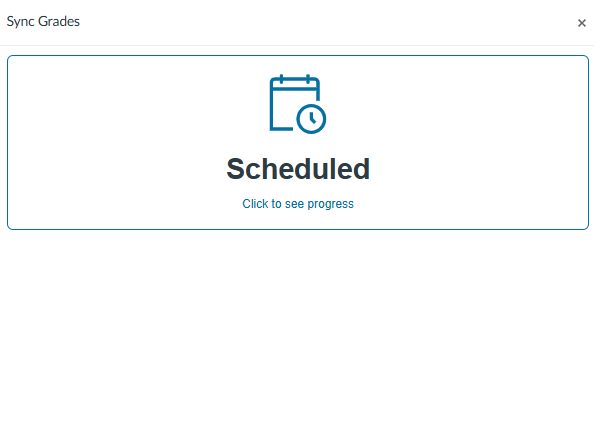
This link will take you to the “Grade Sync” screen where you can see all sync progress. See screenshot below:
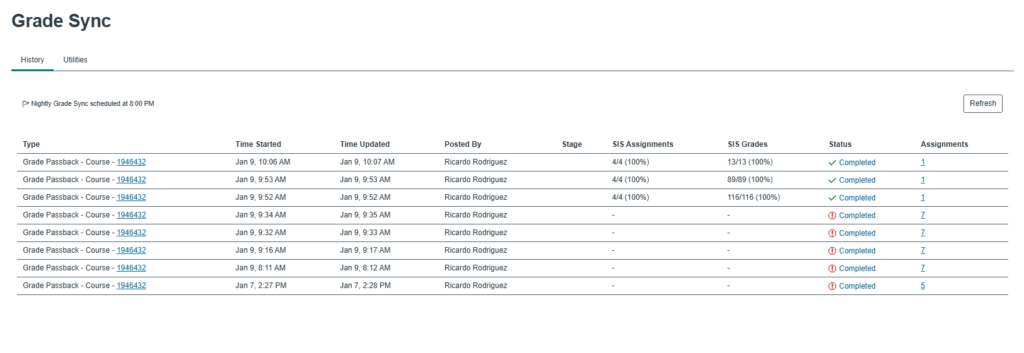
On the “Grade Sync” screen if you sync failed, you will see in the “Status” column a exclamation mark with a circle around in red. This symbol states that some of the syncs failed. A green check mark shows that the sync occurred without any errors.
Clicking on the “Completed” link with the exclamation mark will take you to the Sync Grade screen. Select “Warnings & Errors” tab at the top of the screen to view log error issues.
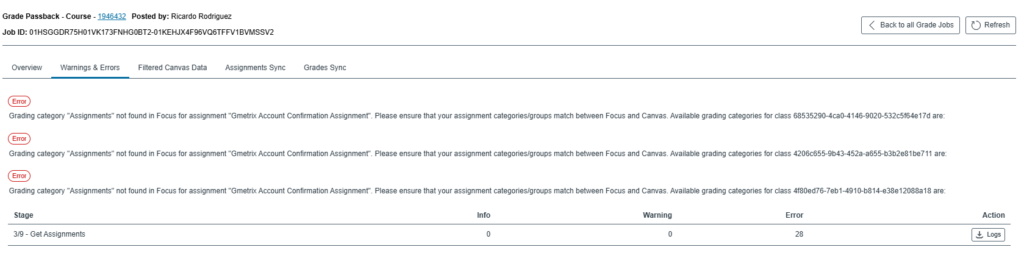
Typically speaking, the errors for Syncing assignments occur for two reasons. One is that the assignment on Canvas or Quiz doesn’t have the correct Grading Category. The second reason is that in Focus the Grading category has not been created or the Grading Category has a different name.
How Do I Fix the Grading Category for Canvas Assignments or Quizzes?
Follow these steps to adjust the grading category on assignments and quizzes in Canvas.
Click on either Quizzes or Assignments from the menu, depending on which type of item you need to modify.
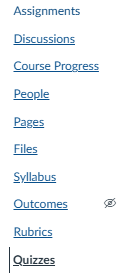
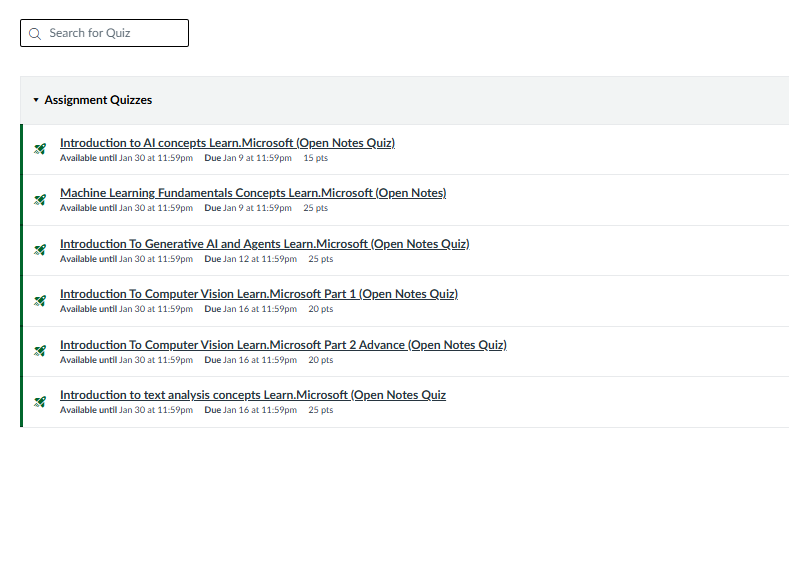
For this example, I’ll modify a quiz (the process is identical for assignments). Click Quizzes from the menu.
Select the quiz you would like to modify the category for.
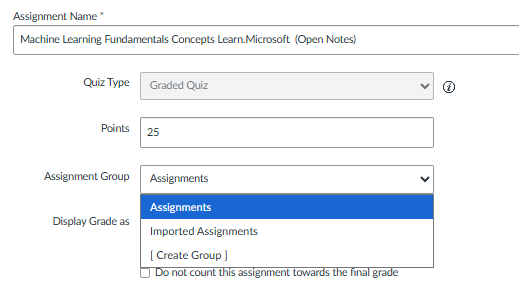
Once selected, click on the “Assignment Group” drop down and choose your group. If you want to create a new group, you can do so at this point.
Important: Whatever Assignment Group you create in Canvas must have a matching Assignment Category in Focus with the exact same name.
Once done selecting, save your quiz or assignment by clicking on the “Save” button on the lower right hand side of the screen. That will complete the process on the Canvas side.
How Do I Create or Edit a Grade Category In Focus?
In order to create or edit an existing grade group in Focus, you will need to log into Focus.
IMPORTANT: Canvas uses the term "Assignment Group" while Focus uses "Assignment Category" — these refer to the same thing and must match exactly (including spelling, capitalization, and spacing) for grades to sync properly.
In order to add or edit a category in Focus, you will need to click on the “Category” tab on the top left hand corner of the screen in Focus.
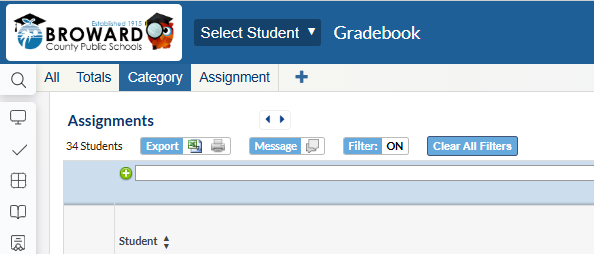
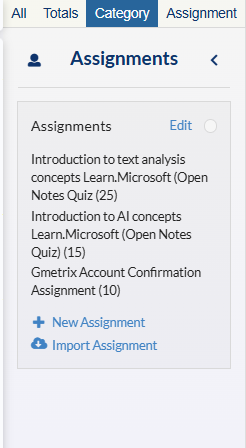
Once clicked, your category option will expand to display either a lack of Grade Categories or your currently existing categories. Here, you can create a “New Assignment”, which must match exactly the “Assignment Group” name in Canvas for an assignment or quiz.
Once these steps have been completed, your assignments should sync seamlessly. Good luck!
Canvas Syncing Tip
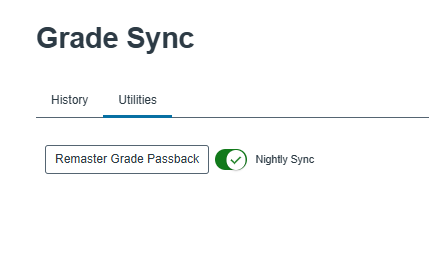
If you would like your assignments to sync every night from Canvas to Focus, please use the “Utilities” option in “Grade Sync” to enable “Nightly Syncs”.