
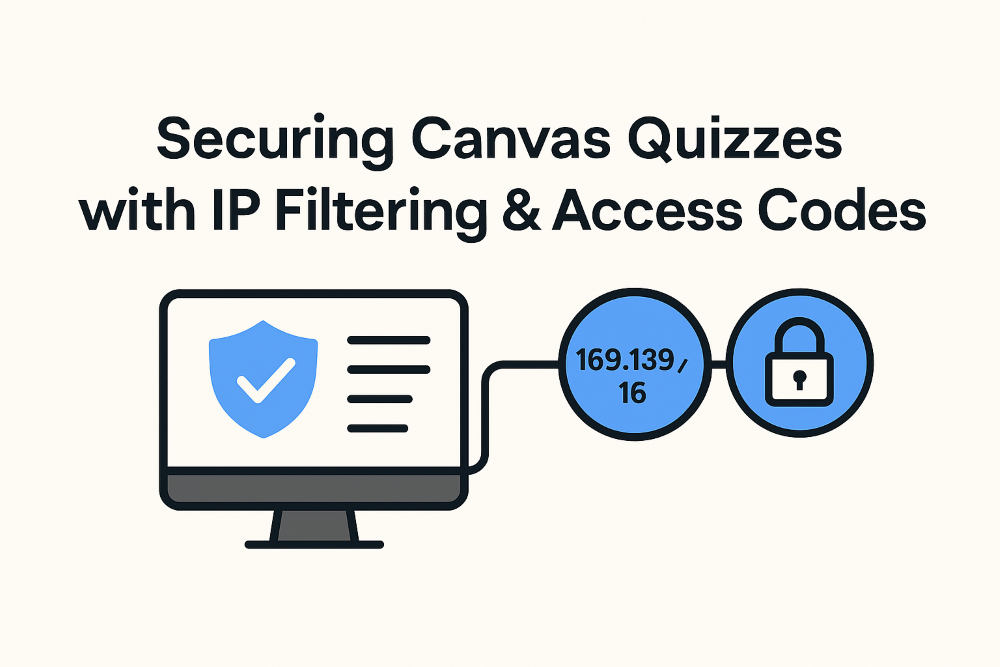
As educators, we continually work to prevent cheating on exams. Even with in-class quizzes, students often try to access the test from home and turn a closed‑notes exam into an open‑notes one. This guide will show you how to secure your Canvas quizzes so they can only be taken at school.
I am writing this guide to help fellow educators on how to setup your exams so that students are not able to take their exam from anywhere else other than the school. A step by step guide on securing your quizzes.
Assumptions
For this guide, I will assume that as an educator you understand the basics in setting up a quiz whether it is a “New Quiz/Survey” or “Classic Quiz”. We will not cover any other settings other than IP Filtering and Access Codes.
Short “At a Glance” Summary
How to Secure Your Quiz:

Turn on Access Code
Turn on IP Filtering
Enter your school’s public IP address + /16
Save
If you are interested in reading the entire documentation from Canvas (Instructure), please use this link: https://community.instructure.com/en/kb/articles/387089-unknown
What are Access Codes?
In Canvas an access code is used to provide authentication to a Quiz. Therefore, students are required when taking a quiz with authentication to add a access code in order to be able to gain access to the quiz.
By default, quizzes are created without any authentication. It is up to the educator to enable this feature. Setting up an access code for a quiz requires enabling the feature via a checkbox.
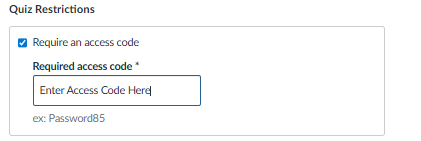
In Classic Quizzes, you will need to look for the section titled “Quiz Restrictions”.

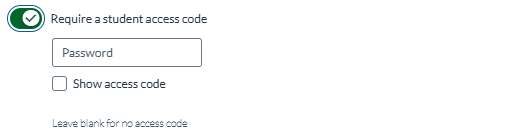
In “New Quizzes/Surveys”, you will need to build the test first, then access the “Settings” tab to locate the “Require a student access code” toggle.

Once the feature has been enabled in Classic Quizzes, you should be able to enter the access code of your choice into field as shown below:
On the “New Quizzes/Survey” quiz, you can enter the access code once the toggle has been enabled.
What is IP Filtering?
IP Filtering is a feature in Canvas Quizzes that allows educators to restrict access to a quiz based on an IP Address.
Where do the IP Addresses get entered?
You will enter the IP Address in a field called “Filter IP Addresses”: see below.
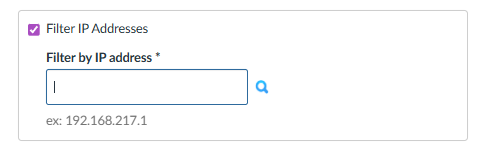
For Broward County Educators, you will enter your schools IP Address.
You can check the external IP Address of your school by going to https://whatismyipaddress.com/
You will want to grab the IPV4 version and not IPV6.
Why We Use This IP Address for IPFiltering?
Once you have your sites externally facing IP Address, you will enter it in the field shown below. However, you will be making a slight change. As an example, I will provide an IP Address I use.
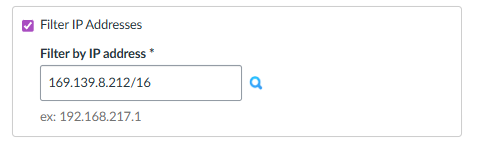
If you noticed, I entered an IP Address of 169.139.8.212. I also added “/16” at the end. You will have to do the same.
Even though your classroom computers might show an IP Address of 10.0.1.0 or 192.168.1.124, those are internal IP Addresses. Canvas only sees the schools external IP Address (The one entire school uses when connecting to the Internet). Every internal IP Address gets converted to an external IP Address on its way out of the router. So, an internal IP Address maps to the external IP Address.
Think of it like this:
- Inside the school, every classroom device has its own “private name” (like 10.x.x.x).
- But when the school talks to the outside world (including Canvas), it uses one shared public name (like 169.139.x.x).
Canvas can only recognize that shared public name.
What the “/16” Means — Explained Simply
When you see an IP address written like this:
169.139.0.0/16
The /16 just tells Canvas how much of the address must match in order for a student to be allowed into the quiz.
Think of it like a street address:
- The 169.139 part = the neighborhood
- The /16 means “as long as they are in this neighborhood, let them in.”
So /16 is simply telling Canvas:
“Anyone whose address starts with 169.139 is allowed to take the quiz.”
You do not need to calculate anything—just add /16 to the end of your school’s public IP address.
That’s it.
Conclusion
By this point, you should understand how Access Codes and IP Filtering work together to secure your exams. I hope this was useful for you in securing your quizzes from being taken from other physical locations.
By combining Access Codes and IP Filtering, you have secured your quizzes so that students are not able to take their quiz from any other location and under the conditions you set.
Access Codes prevent students from unauthorized entry, while IP Filtering ensures that even if the student has the access code they can only take the quiz from a specific location such as the school.
With this setup, you can be confident that your quiz will be fair, controlled, and protected from misuse. Giving you piece of mind that students are completing their quiz in a proper testing environment.
Good luck!